TODO LIST
A downloadable tool
# TODO List App — User Manual
Target file: `todo_app_en.html`
A browser-only TODO list app that uses a CSV file as its database, built with the same mechanism as the household budget app (CSV read/write, auto-save, single HTML file). No server or installation is required — just double-click the file to open it.
## 1. Getting Started
Double-click `todo_app_en.html` to open it in your default browser. On first launch, sample data is shown.
Recommended browsers: the latest Google Chrome or Microsoft Edge. Safari and Firefox work fine for viewing, adding/editing/deleting tasks, and importing/exporting CSV, but the "Overwrite Original File" feature is Chromium-only (see section 4.3).
## 2. Layout
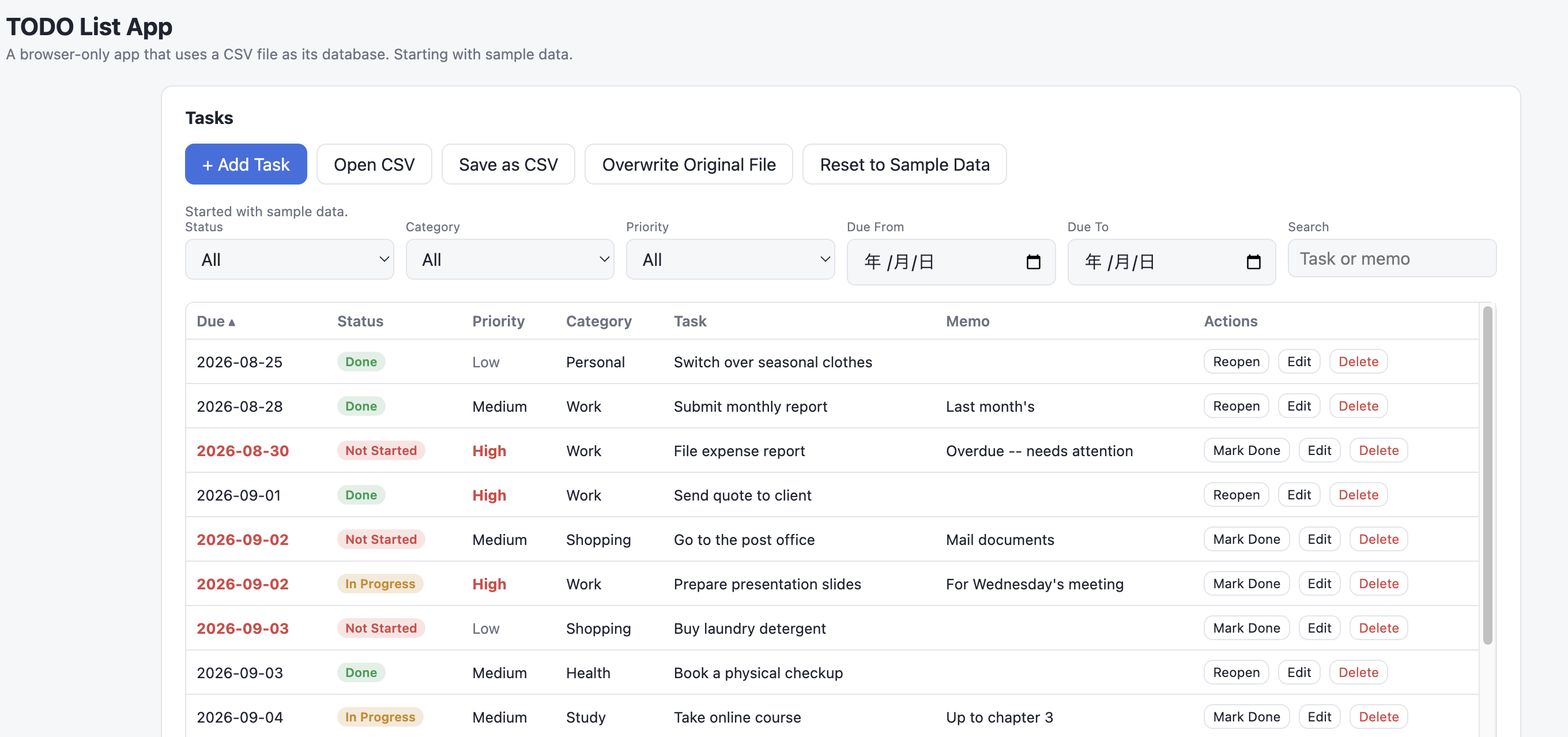
- **Tasks**: All recorded tasks in a table. Click a column header to sort by that column (the default sort is by due date, soonest first).
- **Filters**: Narrow the list by status (Not Started/In Progress/Done), category, priority, due date range (From/To), and a task/memo keyword search.
- **Summary**: Number of tasks shown, how many are done, and how many are overdue.
- **Charts**: Open tasks by category (within the visible range), and the monthly done-vs-open trend based on due dates.
A task is marked overdue (shown in red) when its due date is before today and its status is not "Done". This is evaluated against the actual current date each time you open the app.
## 3. Basic Operations
### 3.1 Add a Task
Click "+ Add Task", fill in the task title, due date (optional), status, priority, category, and memo, then click "Save". Only the task title is required — the due date can be left blank.
### 3.2 Edit, Delete, and Toggle Done
Each row has a one-click "Mark Done" button (shown as "Reopen" once a task is done) to toggle its status. To set a task to "In Progress" specifically, use "Edit" and change the status there. Deleting asks for confirmation first.
### 3.3 Search, Filter, Sort
Typing or choosing a filter value updates the list instantly. Click a column header (Due, Status, Priority, Category, Task, Memo) to sort by it (click again to reverse). Status sorts in the order Not Started → In Progress → Done, and priority sorts Low → Medium → High — not alphabetically.
## 4. Saving and Persistence
Just like the budget app, there are three distinct ways of keeping your data.
### 4.1 Auto-save (browser localStorage)
Every time you add, edit, delete, or toggle a task, it's automatically saved to the browser's local storage. The next time you open **the same file in the same browser**, your data is restored instead of the sample data.
Opening the file in a different browser, a private/incognito window, after clearing site data, or as a different copy of the file will not restore the auto-saved data — it starts with sample data again. Auto-save is a convenience, not a proper backup, so use CSV export (below) for anything important.
### 4.2 Save as CSV (export)
Click "Save as CSV" to download all current data as `todo_YYYY-MM-DD.csv`. Doing this at the end of each session is a reliable way to keep your data safe.
### 4.3 Open CSV (import) / Overwrite Original File
"Open CSV" loads an existing CSV file, replacing the current data. In Chromium-based browsers, once loaded this way, "Overwrite Original File" becomes active and lets you save changes directly back to that file (via the File System Access API; not supported in Safari or Firefox).
### 4.4 Reset to Sample Data
Discards the current data and restores the original sample dataset. This cannot be undone, so export to CSV first if you need to keep anything.
## 5. CSV File Format
| Column | Content | Example |
|---|---|---|
| date | Due date in YYYY-MM-DD format (may be blank) | 2026-09-10 |
| status | `todo`, `doing`, or `done` | todo |
| priority | `high`, `medium`, or `low` | high |
| category | Category name (free text) | Work |
| title | Task title | Prepare the report |
| memo | Memo (optional; commas/newlines are automatically quoted) | For Wednesday's meeting |
The first row must be the header row (`date,status,priority,category,title,memo`). Files are saved with a UTF-8 byte-order mark (BOM) so they open correctly in Excel.
## 6. Default Categories, Statuses, and Priorities
- **Categories**: Work / Personal / Study / Health / Shopping / Other
- **Status**: Not Started (`todo`) / In Progress (`doing`) / Done (`done`)
- **Priority**: High (`high`) / Medium (`medium`) / Low (`low`)
You can import a CSV containing category names outside this list — they'll display and filter normally, but won't appear as an option in the Add/Edit dropdown.
## 7. Troubleshooting
- **My data suddenly reverted to sample data** → See section 4.1. This usually means a different browser, a private window, or cleared site data. Restore an exported CSV via "Open CSV" if you have one.
- **The overdue count seems off** → It's calculated against today's actual date each time you open the app, so the count shifts as days pass — it's not tied to a fixed date.
- **The CSV looks garbled in Excel** → The app exports UTF-8 with a BOM, which Excel normally reads correctly. If it still looks wrong, use Excel's Import feature and explicitly select UTF-8 encoding.
- **The "Overwrite Original File" button doesn't appear** → It only shows up in browsers that support the File System Access API (Chrome, Edge). In Safari or Firefox, use "Save as CSV" instead.
Download
Click download now to get access to the following files:
Leave a comment
Log in with itch.io to leave a comment.